 ▾
▾Is your internet slowing down or do you suspect that someone unauthorized is connected to your Wi-Fi? We advise you on how to find out who is connected to your Wi-Fi, and what to do if you find an intruder.
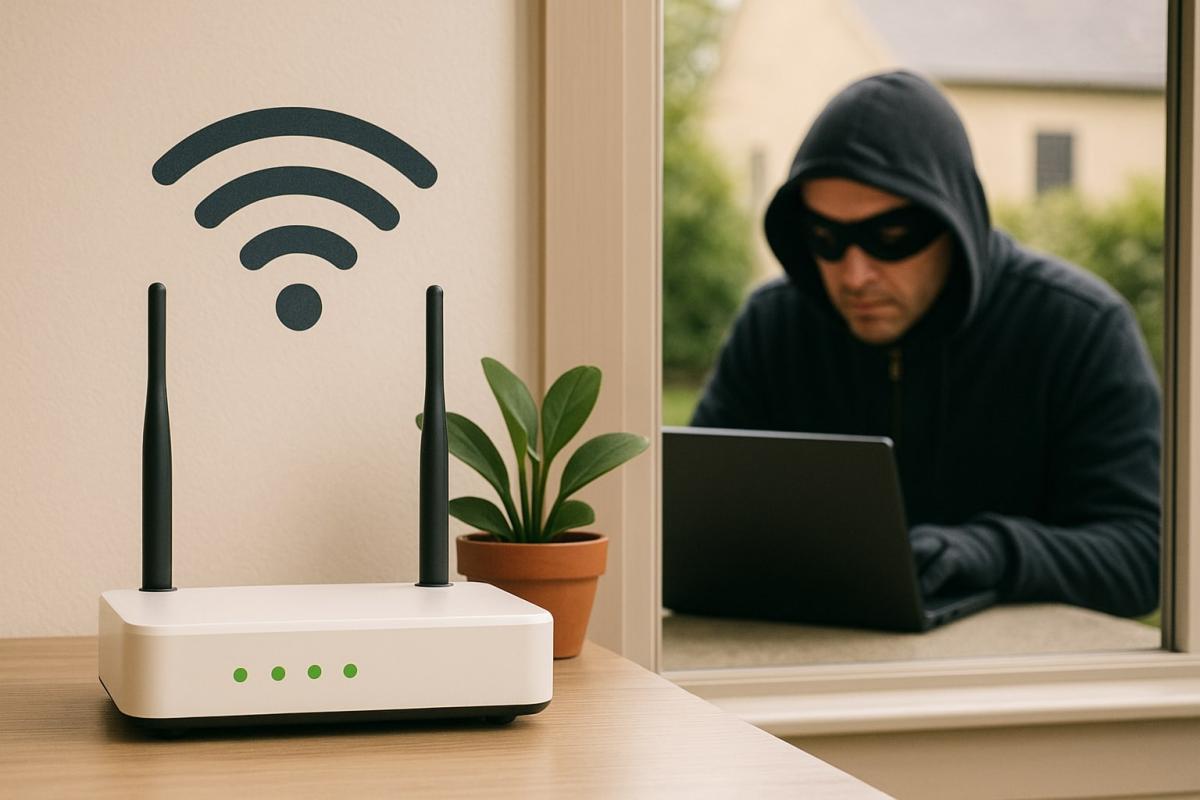
Is your internet slowing down even when you're home alone? Videos take forever to load, websites lag, and the TV or mobile reports outages, even when everything should be running smoothly? If you suspect that someone unauthorized, like a neighbor, may have connected to your Wi-Fi network, it could be a legitimate concern.
Many people have no idea who is currently connected to their network. And even if they do find out, they often don't know how to disconnect someone from Wi-Fi when they shouldn't be there. Yet, it's not as complicated as it may seem. A few simple steps and you'll have clarity.
In this article, we will show you how to find out who is connected to your Wi-Fi, how to identify foreign devices, and what to do if you discover that someone is riding on your network without permission. We'll also advise you on how to block such accesses and secure the network to prevent similar situations from recurring.
How to find out who is connected to your Wi-Fi
Monitor unusual network behavior
The first signal that someone unauthorized might be connecting to your network could be slow internet when you're neither downloading anything nor on a video call. If you notice unusual fluctuations in speed or, for example, that your devices repeatedly and unsuccessfully attempt to connect, it may indicate overload and/or foreign activity.
Modern routers often allow you to view network usage summaries. If you find that a large amount of data is being transferred even at night or during your absence, it's probably time to determine who is connected to your Wi-Fi. It's not complicated, and it doesn't require any special technical knowledge.
Log into the router's interface
The most reliable way to find out who is connected to your Wi-Fi is to check directly in your router's administration. Typically, you just need to enter the device's IP address in a browser (often 192.168.0.1 or 192.168.1.1) and log in using the access credentials. You can find these either on the router's label or in the provider's manual.
In the overview of connected devices, you should see a list of all phones, laptops, and other devices currently active in your network. Each device usually comes with a name and a so-called MAC address, which allows it to be uniquely identified. If you see something in the list that doesn't ring a bell, be alert.
Use a mobile app or third-party tools
If you don't want to delve into router settings, you can use one of the free apps that can map the network without complicated configuration. Popular ones include Fing or Network Analyzer. These apps will quickly show you all devices connected to the Wi-Fi, often including the name, device type, and other identifiers.
It's a convenient option for anyone who wants to quickly verify who is currently connected to the Wi-Fi network. Some of these tools also allow you to monitor the network continuously and alert you to each new connection, which can be useful for the future.
How to identify foreign devices
In the overview of connected devices, it might not always be clear which one is which. A name like “android-d2f891c3” probably doesn't tell you much. The simplest method to identify an unknown device is to turn off your own devices one by one and observe which one disappears from the list.
Another option is to restart the router and reconnect only the devices you actually own. If something extra appears in the list afterward, it's clear that someone else is accessing your network. If this is confirmed, it's time to move on to the next step and address how to disconnect someone from Wi-Fi, and most importantly, prevent it in the future.
How to disconnect someone from Wi-Fi
Change the Wi-Fi password (and restart the router)
The simplest way to disconnect someone from Wi-Fi is to change the network password. This will prevent all devices that don't know the new password from reconnecting. If a device is currently connected, it may remain active until you restart the router. Therefore, we recommend performing a router restart after changing the password, so all existing connections are interrupted and a new login is required.
However, there's a downside. Changing the password will make the network inaccessible to everyone, including your own devices. You'll need to re-enter the password on your phone, laptop, and throughout your smart home. If the new password leaks again, for example, if someone nearby finds out or it is discovered, the intruder can connect again. In such a case, it's advisable to change the network name as well as the password.
Block devices by MAC address
If you don't want to change the password, you can try blocking specific devices using their MAC addresses. Every device connected to a network has a unique identifier that the router can recognize. In the router's administration, you often find the option to create a list of devices with restricted access.
This solution is not foolproof. A technically savvy intruder can change their MAC address and access the network again. Nevertheless, blocking an address can serve as a quick temporary solution or be part of a broader protection strategy.
Disable WPS and enable WPA3 encryption
Another option to make it difficult for someone to access your Wi-Fi is to disable the WPS function. While it makes connecting new devices easier, it represents a security weakness. We recommend disabling WPS in the router's administration.
Additionally, ensure your network uses modern WPA3 encryption. If you have an older router, it might only support WPA2, which is still acceptable but less secure. Newer devices with WPA3 offer a higher level of protection against unauthorized access and make attempts to crack the password more challenging.
How to secure Wi-Fi to prevent it from happening again
Hide the network name (SSID), so it's not visible
The name of your Wi-Fi network, known as the SSID, usually appears in the list of available networks on all nearby devices. If you hide it, regular users won't see the network and won't be able to connect without knowing the name. This option is found in the router's administration, where you can easily deactivate it. Connecting will then be possible only by manually entering the network name and password. Remember to note the name in a safe place so you can share it with family later or recall it yourself.
Set up a guest network and turn it off when not needed
If visitors or neighbors occasionally connect to your Wi-Fi, it's ideal to set up a guest network. This separate Wi-Fi network has its own access credentials and is often entirely isolated from the main home network, enhancing security. Most modern routers allow you to activate such a network, potentially even with time restrictions. Once you don't need it, we recommend turning it off. This way, nobody can connect to your internet connection without your consent.
Change the router's login credentials
Many people still use the default login name and password for router administration, which are easily found online. If someone nearby knows them, they can simply log into the router interface and make changes to the settings without your consent. Therefore, we recommend changing the router's admin password as soon as possible. Do not confuse it with the Wi-Fi network password – these are two different things. A strong router password is another essential layer of protection against the unauthorized use of your internet connection.
Having control over your network is simpler than you think
Home Wi-Fi isn't a mystery for techies. When you know how to find out who is connected to your Wi-Fi, and how to disconnect someone from Wi-Fi, you take the security of your network into your own hands. Just a few right steps and you're at ease – no unauthorized user will easily slip into your connection again.
Are you chatting with a human or a bot? How to identify AI in chat

Online chats are often handled by artificial intelligence today, and at first glance, the responses appear to be from a real person. This is especially true for customer support, where speed and fluency are key. We'll look at how to identify AI in chat, what signs you can use to distinguish it from a human, and where the line of recognition becomes very thin.
What is ransomware and why does it no longer threaten only large companies?

Ransomware attacks are among the most common cyber threats today and are no longer just a concern for large companies. Just one careless click can cost you access to your data. We'll explain what ransomware is, how it works, and why attackers are increasingly targeting average users and smaller businesses.
How zero trust works: why mere connectivity no longer means safety

Connecting to the internet today is not just a matter of speed but also of trust. Networks handle more and more devices, sensitive data, and services that communicate almost constantly. This is why an approach called zero trust has emerged, where nothing is automatically considered safe. The article explains why this model was created and how it subtly influences everyday internet functioning.
10 reasons why your phone is drained sooner than expected

It happens that the battery life decreases faster than one would expect, even when the device is not particularly stressed during the day. Often, it's not a single specific error but a sum of small influences that gradually accumulate. This article explains what has the greatest impact on battery life, when idle draining occurs, and why this can turn into an issue causing the phone not to last even one day.
Wi-Fi on a plane? Yes, but it works differently than at home
Connecting to the internet during a flight is no longer an exception, but it still doesn't work as you're used to at home. In-flight Wi-Fi depends on the technology used, the type of aircraft, and network congestion, and paying for access doesn't always mean fast connection. In this article, we'll explain how in-flight internet works, why it can be slow, and when you can rely on it.
RCS messages: what they are, how they work, and when it's better to turn them off

RCS chat is appearing more frequently in mobile devices, especially with the arrival of iOS 18 and the gradual phasing out of older networks. It is a method of communication that uses the internet, offering higher quality sharing of photos and videos than traditional SMS. We'll explain what RCS means and when it makes sense to keep it enabled.