 ▾
▾Want faster connections and fewer cables? USB4 and Thunderbolt 4 are the future. Our article clearly presents what these technologies can do, how they differ, and which is best for you. Whether you're a gamer or a content creator, USB4 and Thunderbolt 4 make life a lot easier.
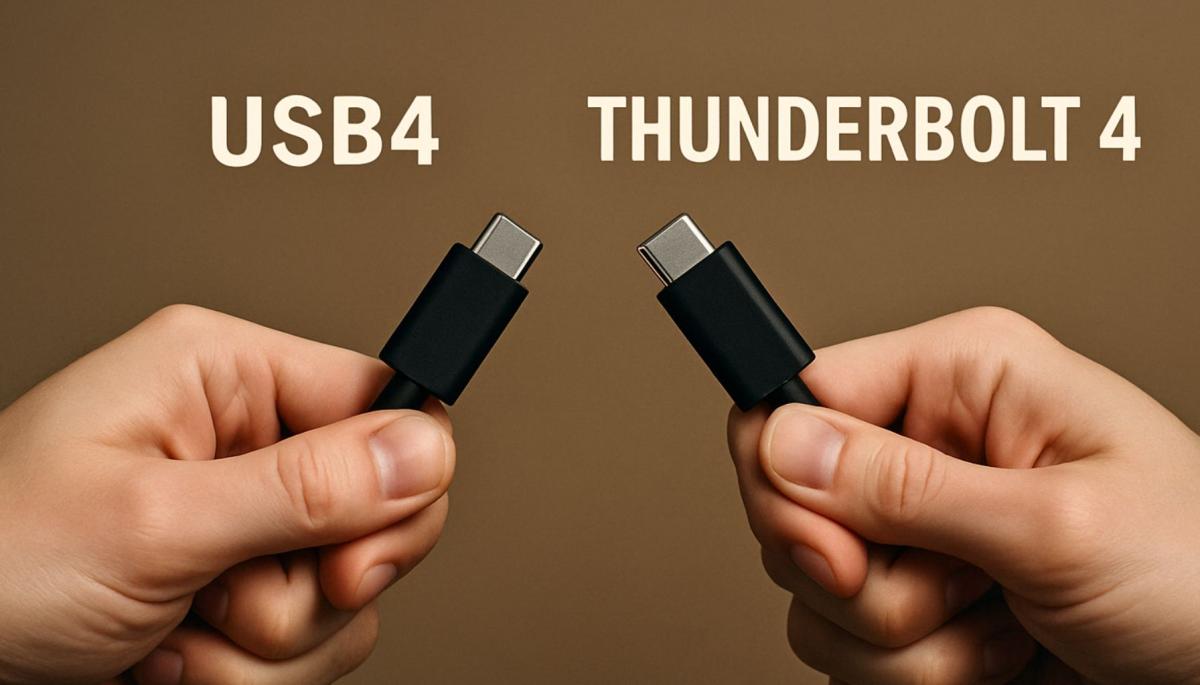
If you've ever looked at the specifications of a new laptop, monitor, or docking station, you've probably encountered abbreviations like USB4, Thunderbolt 4, or USB-C. These terms may seem like additional technical jargon that just complicates your life, but they actually represent the future of device connectivity. What is USB4? And is it the same as Thunderbolt 4, or is there a difference between them?
USB4: The True King of Versatility
USB4 is the latest version of the Universal Serial Bus standard which we've been using for years to connect everything from mice to external drives. It was introduced in 2019 by the USB Implementers Forum and represents a significant leap over older versions, such as USB 3.2. It can transfer data at speeds of up to 40 gigabits per second, which is enough to move a massive video file in a flash.
However, some devices with USB4 offer only half the speed, i.e., 20 gigabits per second, so always check the specifications. Besides speed, USB4 supports connecting 4K monitors at 144 Hz, which gamers and content creators will especially appreciate.
Additionally, with support for up to 100W charging via USB-C, you can power a laptop and transfer data with a single cable. What makes USB4 really handy is its ability to handle multiple tasks simultaneously. Through one cable, you can send video and power a device without having to deal with a bunch of different ports.
Moreover, it is backward compatible, so it works with older USB devices, albeit with their limitations. USB4 is simply designed to be as versatile as possible – whether you're connecting a gaming console, an external SSD, or a monitor, this standard handles it all.
Thunderbolt 4: The Premium Class of Connectivity
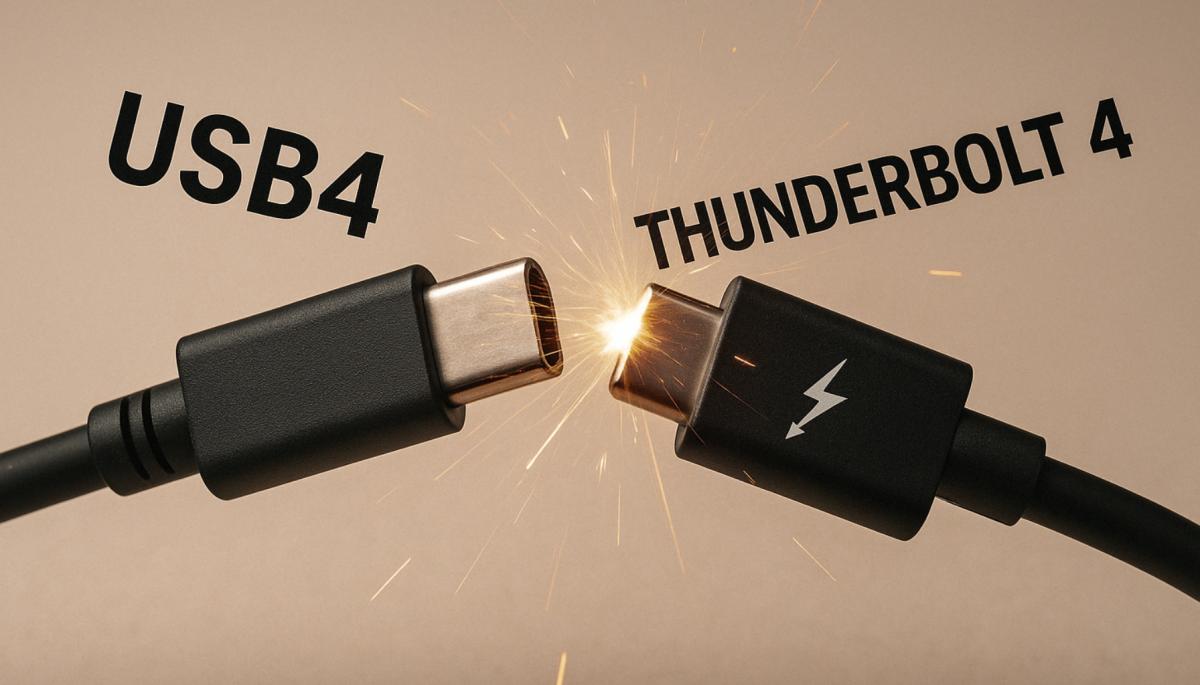
Thunderbolt 4, introduced by Intel in 2020, is like an enhanced sibling of USB4. It uses the same USB-C connector and builds on a similar foundation, but adds several features that make it more reliable and powerful.
Unlike USB4, where speed can vary, Thunderbolt 4 always guarantees 40 gigabits per second, with at least 32 reserved for data. This means that connecting a super-fast external drive or graphics card is seamless.
Moreover, Thunderbolt 4 mandatorily supports connecting two 4K monitors simultaneously or one 8K monitor, which is great for professionals who need large workspaces. Another feature that sets Thunderbolt 4 apart is its ability to connect multiple devices in a chain – known as daisy-chaining. For example, you can connect a monitor, a disk, and a docking station, all running through one port.
Thunderbolt 4 also adds features like waking devices from sleep mode or fast network connectivity via docking stations. It's simply a standard that's tuned for those who don't want to make compromises.
How Do USB4 and Thunderbolt 4 Differ?
Even though USB4 and Thunderbolt 4 may look similar at first glance, each has its strengths. USB4 is more flexible and usually cheaper because manufacturers don't have to meet stringent requirements. This means it is suitable for a wide range of devices, from phones to gaming consoles, but features can vary depending on the specific model.
Thunderbolt 4, on the other hand, is about certainty – you always know you're getting maximum speed, support for multiple monitors, and other features. However, you will pay more for this consistency because devices with Thunderbolt 4 tend to be more expensive due to licensing and certifications.
Another difference is in compatibility. USB4 works with most older USB standards, but support for Thunderbolt 3 is not guaranteed. Thunderbolt 4, on the other hand, is fully compatible with USB4 and Thunderbolt 3, making it suitable if you already have Thunderbolt devices.
In short, USB4 is great for general use, while Thunderbolt 4 is intended for demanding users.
USB-C is Not USB4 or Thunderbolt 4
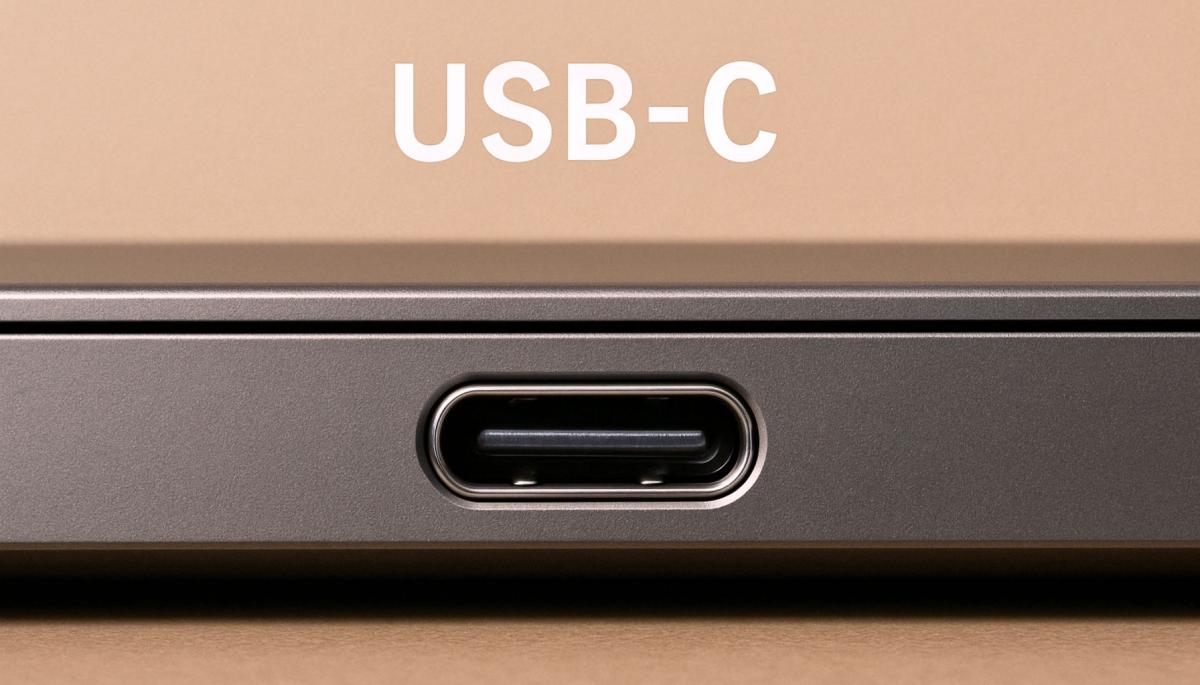
Here’s something to clarify, as it can be confusing. USB-C is just a connector – the small oval port you find on most new devices today. It can transfer various standards, from old USB 2.0 to USB4 and Thunderbolt 4. This means that not every USB-C port automatically handles the highest speeds or features.
For example, a cheaper laptop might have a USB-C port that only supports 10 gigabits per second with no video, while a more expensive model might support Thunderbolt 4 with all its features. Always check the technical specifications to know what your port is truly capable of.
Who Needs USB4 and Who Needs Thunderbolt 4?
If you’re an average user looking to quickly transfer files, connect one monitor, or charge a phone, USB4 will probably suffice. It's available on many devices, from laptops to docking stations, and is a great choice for households due to its lower cost. For example, gamers looking to connect a Steam Deck to a high-refresh-rate monitor won't go wrong with USB4.
Thunderbolt 4 is for those who need the maximum. If you’re a graphic designer editing videos on two 4K monitors or a gamer wanting an external graphics card for better performance, Thunderbolt 4 is the way to go. Its ability to chain multiple devices through one cable and ensure top performance is ideal for professional workstations. You'll pay more, but you'll get a device you can rely on.
Where Are USB4 and Thunderbolt 4 Heading?
Both standards are at the forefront now, but technology is always advancing. There’s already talk of USB4 Version 2.0, which could offer speeds up to 80 gigabits per second, surpassing everything Thunderbolt 4 can do.
Intel is likely preparing Thunderbolt 5, which could bring further improvements. Whatever happens, the USB-C connector remains a staple, so you don't have to worry about needing to replace all your cables.
Phone instead of a card or key. What is NFC and how does it work?

Just hold your phone up to a terminal and within moments the payment is made. However, NFC technology is capable of much more. We will explain what NFC is and how it works, what actually happens during NFC mobile payments, what else you can use it for, and how secure it is. We will also show what NFC tags are and how they can simplify some daily tasks.
What would happen if the internet went down for a day?

What if there was a full-day internet outage? An immediate collapse of society wouldn't occur, but daily operations would quickly become complicated because today's world is more dependent on the internet than we often realize. Which services would stop functioning first, and what would happen with payments, transportation, or work?
WPA, WPA2, WPA3: Which Wi-Fi security should you use today?

WPA, WPA2, WPA3, AES or TKIP? Wi-Fi security settings might initially seem unnecessarily complicated. However, when you understand what each abbreviation stands for, it becomes fairly simple. Therefore, we'll explain the differences between them and which is the best choice today. We'll also suggest what settings to choose if you have older devices at home that don't support the latest standard.
Is incognito mode really anonymous? Who still sees what you're doing

Do you think incognito mode hides you from everyone on the internet? In reality, it works a bit differently. We explain what it actually does, when it's sensible to use it, who can still see your activity, and whether history can be traced in incognito mode.
Why Does AI Hallucinate? A Peek Under the Hood of Language Models

AI can answer almost any question in just a few seconds. However, sometimes it confidently states information that is not true. Why does this happen and what are so-called AI hallucinations? In this article, we'll explain how large language models work, why they sometimes create false answers and how developers are gradually trying to mitigate this issue.
What is a CDN and why is internet content copied worldwide

Behind every loaded video, photo, or webpage is a technology called CDN. It is used by streaming services, social networks, and regular websites, yet many people have never heard of it. In this article, we will explain what this abbreviation means, how it works, why internet content is stored in various locations around the world, and why today's internet can hardly do without it.